Free Print-Ready Toolkit
Four practical PDFs for preparing files, briefing a print shop and checking common paper sizes. No email signup, no paywall - download what you need and use it in your own projects.
What is inside
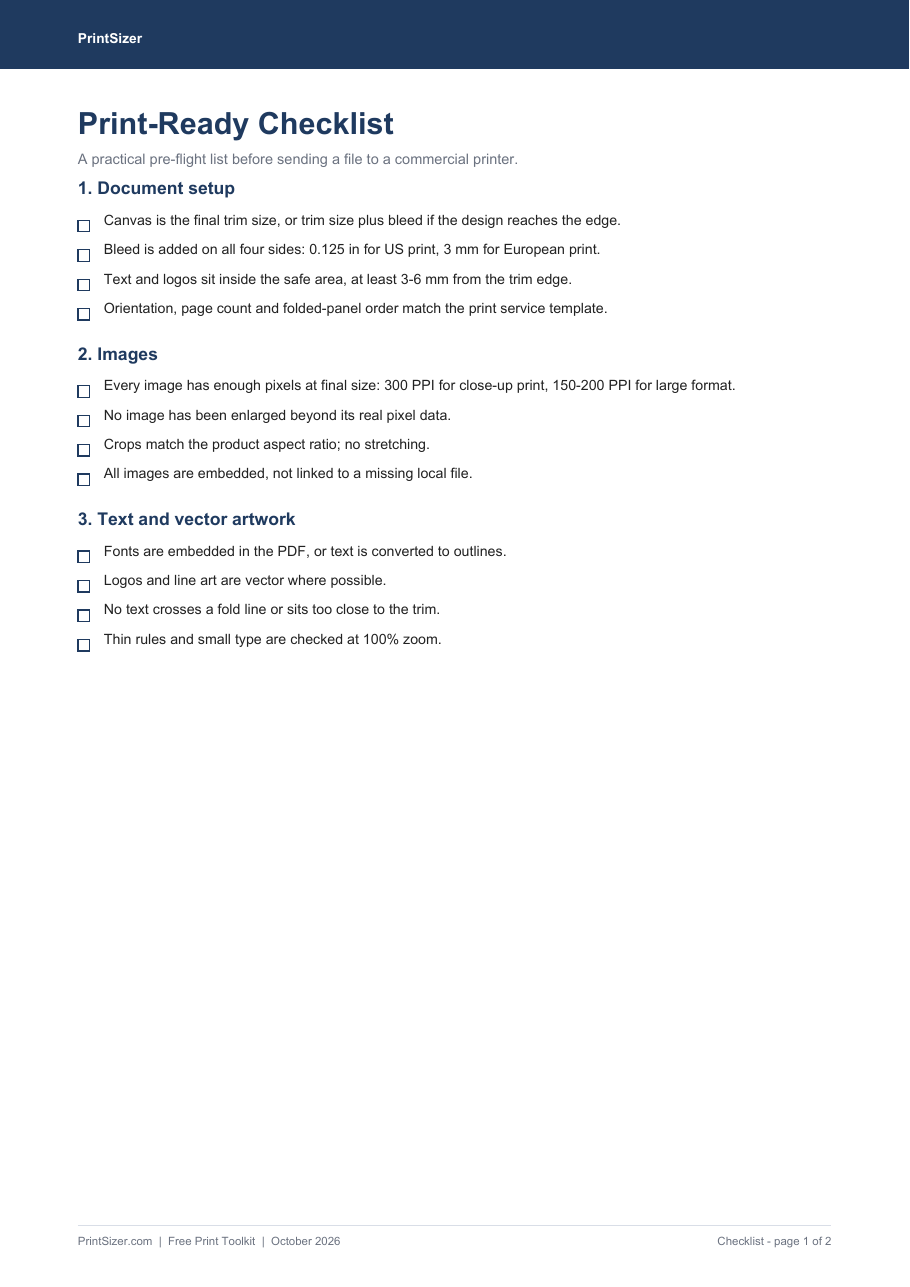
Print-Ready Checklist
Two A4 pages of checkboxes covering bleed, safe margins, image resolution, fonts, colour, export and final verification.
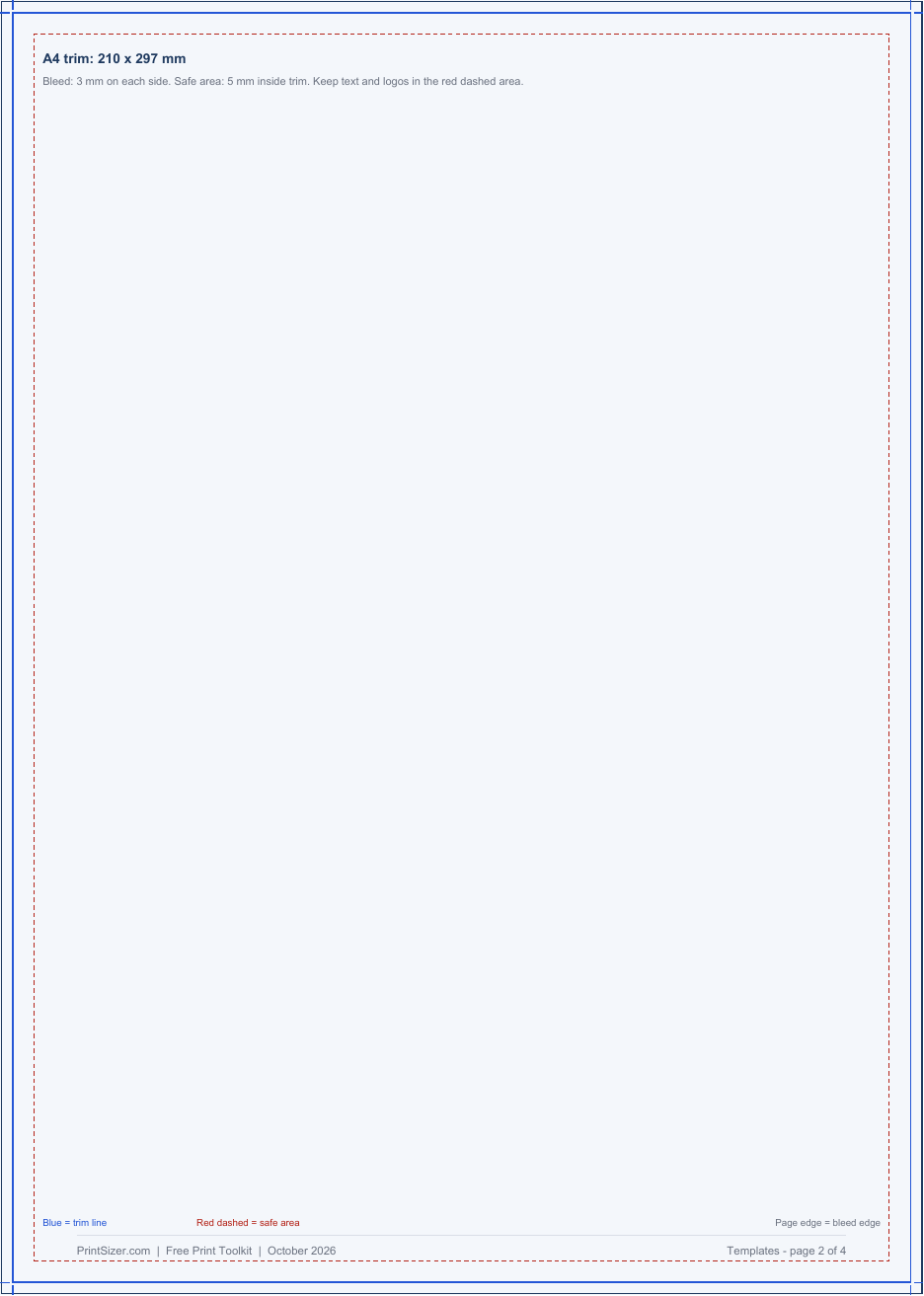
Bleed & Safe Area Templates
Instruction page plus actual-size A4 (216 x 303 mm), US Letter (8.75 x 11.25 in) and business card (3.75 x 2.25 in) templates.
Print Vendor Quote Sheet
A one-page briefing form for size, quantity, stock, finishing, colour, file format, price, deadlines and the questions to ask before approving.
Paper Size Quick Reference
A0-A6, US Letter, Legal and Tabloid in millimetres, inches and pixels at 150 and 300 DPI.
Download all four PDFs as a ZIP
How to use the templates
- Open the template in your layout program at its actual page size; do not scale the page.
- Keep the guides on a separate layer while designing, then hide or remove them before exporting the final file.
- The page edge is the bleed edge. The blue solid line is the final trim line. The red dashed line is the safe area.
- Extend backgrounds and photos to the page edge, but keep text, logos and QR codes inside the safe area.
- Ask your printer for their own template when one is available; folding and cutting tolerances vary.
Why these files exist
PrintSizer's calculators answer specific sizing questions, but a number alone is not a production workflow. These templates turn the common rules into something you can actually use: a checklist you can tick off, a form you can send to a printer, and a template that makes bleed and safe areas visible.
The resources are informed by the same print testing documented in our print lab methodology. When a recommendation depends on a printer's tolerance or a specific material, the files say so instead of pretending there is one universal answer.
Licence and accuracy
- Free for personal and commercial print projects.
- Do not resell the files or redistribute them as your own template product.
- Dimensions and pixel values are rounded for practical use; confirm final requirements with your print service.
- No personal data is collected to download these files.
Related pages
Print bleed calculator · What is bleed? · Print file setup checklist · Print size calculator · Common print sizes chart
Frequently asked questions
Can I use these templates with Canva, Illustrator or InDesign?
Yes. Import the PDF at actual size or recreate the guide lines on a separate layer. Check the page size after import and turn off any "fit to page" option.
Do I need to keep the guide colours in the final file?
No. The guides are for design only. Hide or remove them before exporting the file you send to the printer.
Is the paper quick reference suitable for every printer?
It gives standard paper dimensions and mathematical pixel equivalents. Your printer may request a different DPI or pixel size, so use their specification for the final file.